Introduction
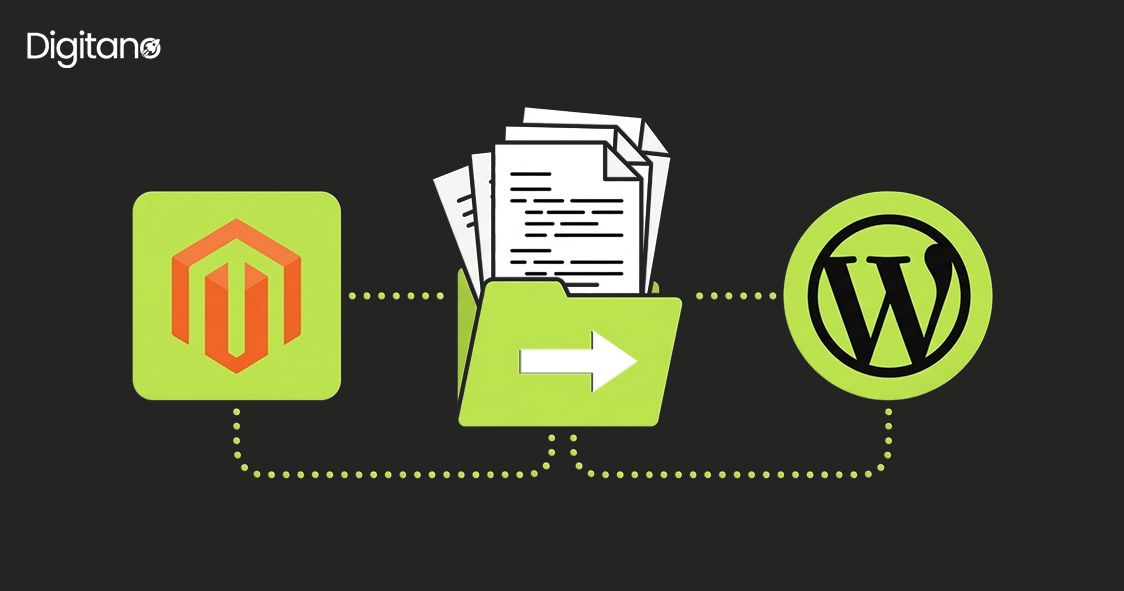
Migrating from WordPress to Magento significantly expands your online presence and enhances your e-commerce capabilities. WordPress and Magento are two popular platforms, each with its unique strengths and purposes. While WordPress excels in content management and blogging, Magento is designed explicitly for robust e-commerce functionality.
The decision to migrate from WordPress to Magento is often driven by the need for a more scalable, feature-rich, and tailored e-commerce solution. Magento offers a wide range of e-commerce tools, extensions, and customization options to empower your business to reach new heights in the online marketplace.
However, this migration process requires careful planning, execution, and attention to detail. It is essential to assess your current WordPress website thoroughly and identify the specific data, functionalities, and design elements that need to be migrated. Proper preparation will help mitigate potential challenges and ensure a successful migration.
This guide walks you through each step of the WordPress to Magento migration process — from the pre-migration phase of analyzing your current website to the post-migration activities of monitoring and maintenance. Whether you are a business owner or a developer, this guide will equip you with the knowledge needed to navigate the migration process confidently.
Part 1: Pre-Migration Phase
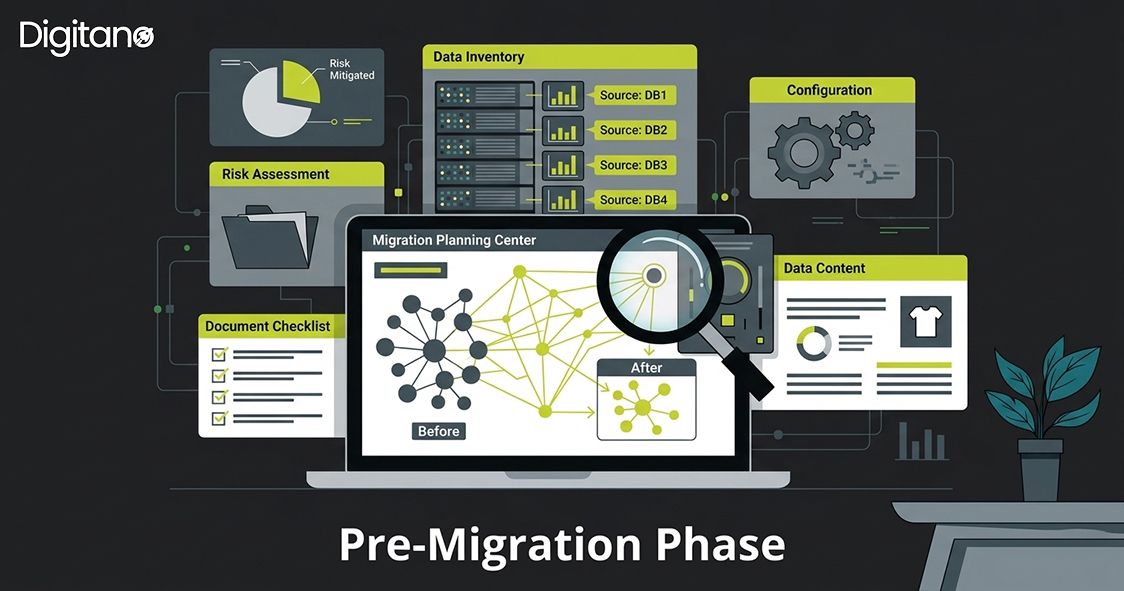
Before diving into the migration process, it is crucial to conduct a thorough pre-migration assessment of your current WordPress website. This phase will help you understand the scope of the migration, identify potential challenges, and set clear objectives for the transition to Magento.
Analyzing your current WordPress website
Content inventory
Take an inventory of all your website content, including posts, pages, categories, and media files. This will help you determine the volume of data that needs to be migrated and ensure that all essential content is included.
Plugins and extensions evaluation
List down all the plugins and extensions used on your WordPress site. Identify their functionalities and assess if similar features are available in Magento or if custom development is required.
Theme assessment
Understand the design elements, layout, and customization of your WordPress theme. This will assist in selecting an appropriate Magento theme or planning for custom theme development.
Identifying essential data and functionalities to migrate
Consider your business requirements and prioritize the data and functionalities that must be migrated to Magento. Separate essential e-commerce data like product information, customer data, and order history from non-essential content.
Setting migration goals and objectives
Define clear migration goals, such as improved website performance, enhanced user experience, and increased sales. Set realistic objectives and key performance indicators (KPIs) to measure the success of the migration.
Creating a migration timeline
Establish a detailed timeline for the migration process, including specific milestones and deadlines. Factor in time for testing and resolving any issues that may arise during the migration process.
Part 2: Choosing the Right Magento Version
With a clear understanding of your migration goals and the scope of your e-commerce project, the next crucial step is to select the appropriate version of Magento that aligns with your business requirements.
Magento Open Source vs. Adobe Commerce
Selecting the appropriate version
Budget and scale
Consider your budget and the scale of your business. If you have a limited budget and an SME, Magento Open Source may be sufficient to meet your needs. For larger enterprises with more substantial budgets, Adobe Commerce offers additional benefits and support.
Feature requirements
Evaluate the specific features and functionalities you need. Compare the features provided by both versions and determine which aligns better with your requirements.
Technical expertise
Assess the technical expertise of your team or development partners. Adobe Commerce may require more technical know-how for setup, maintenance, and customization compared to Magento Open Source.
Scalability
Consider your business growth projections and potential expansion. Adobe Commerce is generally better equipped to handle multiple micro-services and high-scale operations.
Technical requirements for Magento installation
- Server Requirements: Review PHP version, database, and web server compatibility. Ensure your hosting environment meets all specifications.
- Software Dependencies: Check for any required software dependencies or extensions needed for Magento installation.
- Performance Considerations: Consider performance optimization and caching mechanisms to ensure a fast and responsive user experience.
Part 3: Data Migration
One of the most critical aspects of the WordPress to Magento migration is the smooth data transfer from your existing WordPress website to the new Magento platform. Ensuring accurate and complete data migration is essential to maintain website functionality, user information, and SEO rankings.
Exporting data from WordPress
Posts, pages, and categories
Use WordPress export tools to export all your posts, pages, and categories in XML format. This file will serve as the basis for importing content into Magento.
Users and customer data
Export user and customer data, including account information, login credentials, and user roles, from WordPress. This data is essential for maintaining user accounts during the migration.
Media files and images
Transfer media files such as images and videos used in your WordPress content. Consider organizing these files to ensure proper mapping during the import process.
SEO data and metadata
Export essential SEO-related data, including meta titles, descriptions, and keywords, as well as any custom SEO settings applied to posts and pages.
Data mapping and transformation
- Addressing Data Format Differences: Analyze the data structure and format differences between WordPress and Magento. Create a data mapping plan to align WordPress data with the corresponding fields in Magento.
- Handling Data Inconsistencies and Duplicates: Cleanse and de-duplicate data, as inconsistencies and duplicates can cause issues during migration. Pay close attention to data integrity to avoid complications post-migration.
Importing data into Magento
- Using Built-In Import Tools or Third-Party Extensions: Magento offers built-in import tools that allow you to import data from different file formats, including CSV. Consider using third-party extensions for more complex data imports.
- Data Verification and Testing: After importing the data into Magento, thoroughly verify its accuracy and integrity. Test product details, customer information, and media files to ensure a successful migration.
Ensuring data security and backup
- Data Security: During the migration process, take measures to protect sensitive user and customer information from potential security threats. Encrypt data when transferring it between platforms.
- Data Backup: Before migrating, create a complete backup of your WordPress database and files. This backup will serve as a fail-safe in case any issues arise during the migration process.
Part 4: FmeAddons Migration Plugin Reference
For teams migrating from Magento 2 to WooCommerce, the FmeAddons Magento Migration plugin offers an automated, API-based solution for transferring products, customers, and orders. This section covers the plugin's capabilities, filters, and how to use it effectively.
What the plugin migrates
Key features
API-based secure migration
The plugin connects to your Magento 2 store using a URL and API key. This ensures a secure, encrypted data transfer without exposing raw database credentials.
Granular import filters
Rather than migrating everything at once, you can filter exactly what gets imported. This gives you full control and avoids importing unwanted or outdated records.
Filter options by data type
Product filters
- Product name
- SKU (Stock Keeping Unit)
- Short description
- Full description
- Product status (active, disabled, etc.)
- Category and publishing date
Customer filters
- First and last name
- Email address
- Customer ID
- Group ID
- Specified registration date range
Order filters
- Order ID
- Order status ID
- Created before or after a specific date
- Option to update already existing order data
- Option to change Magento order status during migration to WooCommerce
Bulk import and progress monitoring
The plugin supports bulk imports, allowing you to migrate all data at once or choose specific data types (products only, customers only, or orders only). A real-time progress bar tracks the migration status for each data type individually and overall.
Steps to use the FmeAddons plugin
- Install the FmeAddons Magento Migration plugin on your WooCommerce store
- Navigate to the plugin settings and enter your Magento 2 store URL and API key
- Choose the data type(s) you want to migrate: products, customers, or orders
- Apply any filters to narrow down the specific records you want to import
- Click Import and monitor progress using the built-in progress bar
- After import completes, verify the data accuracy in your WooCommerce admin
- Run test orders and check customer accounts to confirm everything transferred correctly
Part 5: Design and Theme Migration
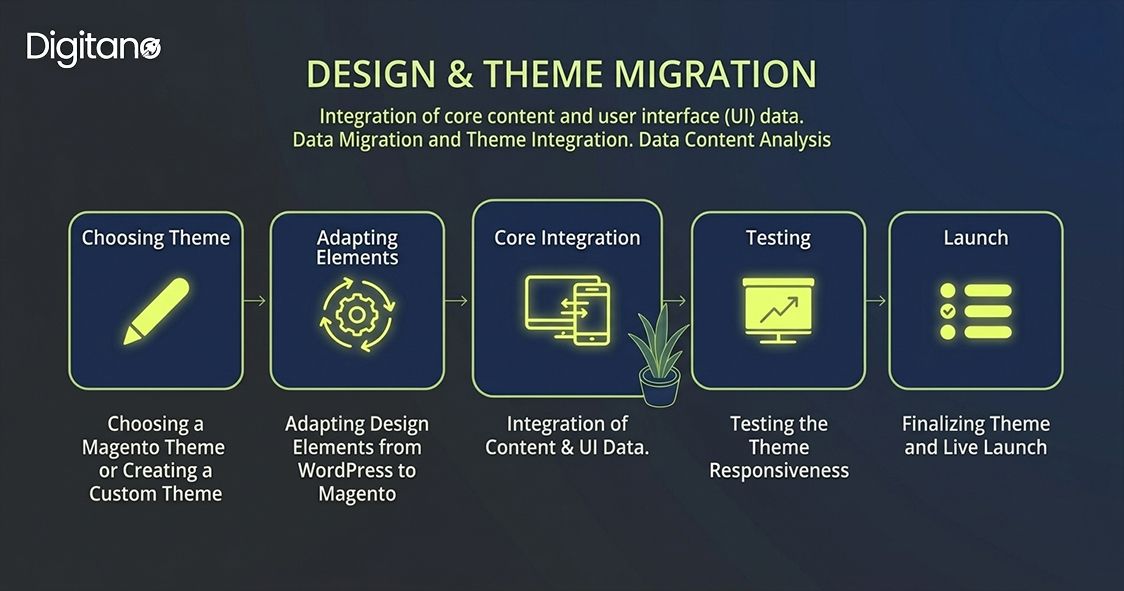
The visual appearance and user interface of your e-commerce website play a significant role in attracting and engaging customers. During the WordPress to Magento migration, it is essential to carefully handle the design and theme migration to maintain a consistent and appealing look for your new Magento store.
Choosing a Magento theme or creating a custom theme
Pre-built themes
Magento offers a variety of pre-built themes in its marketplace. Choose a theme that aligns with your brand identity, industry, and overall design preferences. These themes can provide a quick and convenient starting point for your Magento store.
Custom theme development
If you require a unique and tailor-made design to match your brand identity, consider investing in custom theme development. A custom theme allows for complete control over the appearance and user experience of your e-commerce shop.
Adapting design elements from WordPress to Magento
- Layout and Structure: Analyze the layout and structure of your existing WordPress website. Adapt and implement the same or similar layout in Magento to maintain familiarity for your users.
- Typography and Color Scheme: Ensure that typography and color schemes from WordPress are replicated in the Magento theme. Consistency in typography and colors enhances brand recognition.
- Logo and Branding: Integrate your logo and branding elements seamlessly into the Magento theme. Your brand identity should be consistent across both platforms.
Ensuring mobile responsiveness and cross-browser compatibility
- Mobile Responsiveness: With the increasing use of mobile devices for online shopping, it is crucial to ensure that your Magento theme is fully mobile-responsive.
- Cross-Browser Compatibility: Test your Magento theme on multiple web browsers (Chrome, Firefox, Safari, Edge) to ensure consistent and error-free rendering.
Testing the theme
- Functional Testing: Test the theme thoroughly to verify that all design elements function correctly, including navigation, buttons, forms, and interactive components.
- Performance Testing: Check the theme's impact on website performance, such as page load speed and server response times. Optimize as needed.
- Content Mapping: Verify that images, text, and multimedia elements from WordPress display correctly within the new Magento theme.
Part 6: SEO and URL Migration
Preserving your website's search engine rankings and traffic is vital during the migration process. Effective SEO and URL migration strategies will help maintain your website's visibility in search engines, prevent broken links, and ensure a seamless user experienc
Why your indexed WordPress pages matter
When your WordPress site is live, Google has already read and saved your pages. It knows your URLs, your content, and your rankings. The moment you switch to Magento, those old WordPress URLs stop working. If you do nothing, Google will see broken pages and your rankings will drop.
The solution is 301 redirects. They tell Google that a page has moved permanently to a new address. Google follows the redirect, transfers the SEO value, and updates its index automatically.
Creating a URL mapping strategy
Develop a URL mapping plan to map the URLs of your existing WordPress pages to their corresponding URLs on Magento. Implement 301 redirects from the old WordPress URLs to the new Magento URLs to inform search engines about the page's permanent move and retain link equity.
Implementing 301 redirects in Magento
In Magento, go to Marketing → URL Rewrites. Add your old WordPress URL and point it to the new Magento URL. Do this for every product, category, and blog page. If you have hundreds of pages, use a CSV import or a Magento extension like URL Rewrite Manager to do it in bulk.
- Use 301 redirects for individual pages, categories, and posts
- Test all redirects to ensure they lead users to the correct Magento pages
- Match your URL structure as closely as possible to minimize the number of redirects needed
Complete Magento SEO setup checklist
- Set up 301 redirects for every old WordPress URL in Marketing → URL Rewrites
- Copy all meta titles and meta descriptions to Magento product and category pages
- Configure URL settings under Stores → Configuration → Catalog → SEO
- Enable XML Sitemap under Stores → Configuration → Catalog → XML Sitemap
- Submit the new sitemap to Google Search Console after going live
- Keep WordPress site live (or redirects active) for at least 3 months post-launch
Part 7: Extension and Functionality Replication
As you migrate from WordPress to Magento, you will need to replicate the functionalities provided by the plugins and extensions used on your WordPress site. Magento is an e-commerce-centric platform where many custom WordPress functionalities are covered by native Magento features.
Identifying equivalent Magento extensions
- List all the plugins used on your WordPress site and identify their primary functionalities
- Research the Magento Marketplace and other trusted sources to find equivalent extensions
- Choose extensions that are compatible with your selected Magento version and meet your functional requirements
Developing custom functionalities if necessary
- Determine if any specific functionalities are not readily available in Magento's extension ecosystem
- Work with experienced Magento developers to design and implement custom solutions that align with your business processes
- Ensure that custom functionalities integrate seamlessly with the Magento environment
Integrating third-party services and APIs
- If you were using third-party services or APIs on your WordPress site, ensure these integrations are maintained during the migration
- Verify that third-party services have Magento-compatible APIs and work with your Magento version
- Test the integrations thoroughly to guarantee smooth functioning on your Magento store
Part 8: Testing Phase
Before going live with your new Magento store, it is essential to conduct thorough testing to identify and resolve any issues that might have arisen during the migration process.

Conducting thorough testing on the development server
- Test all website functionalities such as browsing products, adding items to the cart, and completing the checkout process
- Perform extensive testing on different devices and browsers to ensure cross-device and cross-browser compatibility
- Test all 301 redirects to confirm they lead to the correct Magento pages
Checking for data accuracy, functionality, and performance
- Verify that all data including products, categories, and customer information was migrated accurately from WordPress to Magento
- Test custom functionalities, extensions, and third-party integrations to ensure they work as expected
- Measure website performance and address any issues related to speed and responsiveness
Involving stakeholders for user acceptance testing
- Engage stakeholders including team members and trusted customers to test user acceptance
- Gather feedback and address any usability issues or concerns raised during the testing phase
Part 9: Launch and Post-Migration Activities
After successfully completing the testing phase, you are ready to launch your new Magento store. The launch process should be executed meticulously to avoid disruptions and ensure a seamless transition.
Launch steps
- Take a final backup of your WordPress website including the database and all files
- Migrate the verified and tested data from the development server to the live Magento server
- Double-check all data and functionalities on the live site
- Point your domain to the new Magento server
- Submit the new sitemap to Google Search Console
- Announce the new website to users and customers via email and social media
Addressing post-migration issues and bugs
- Monitor the live Magento store closely during the initial days after launch to identify any post-migration issues or bugs
- Set up error tracking and logging mechanisms to promptly address and resolve any encountered problems
Monitoring and maintenance
Website performance monitoring
Regularly monitor website performance, including page load speed, server response times, and overall user experience. Collect and analyze user feedback to identify areas of improvement.
Regular updates and security patches
Keep your Magento installation, themes, and extensions up to date by applying regular updates and security patches. Staying current with the latest versions ensures your store remains secure and operates efficiently.
Continuous improvement and optimization
Continuously analyze website traffic, sales data, and user behavior to identify opportunities for optimization and growth. Implement A/B testing and conversion rate optimization techniques to enhance performance.
Scaling for growth
As your business grows, be prepared to scale your Magento store to accommodate increased traffic and demand. Upgrade your hosting plan, optimize server resources, and consider performance enhancements to handle higher loads.
Conclusion
Migrating from WordPress to Magento is a transformative journey that empowers your business with a robust and feature-rich e-commerce platform. From the initial planning and data migration to the launch and post-migration activities, each step is critical to ensuring a successful migration and the long-term success of your online store.
Migrating to Magento is a complex process that requires thorough planning, technical skills, and meticulous attention to detail. If you feel daunted during the migration process, it is highly advisable to seek guidance from experienced Magento developers or agencies who can assist you throughout the journey.
FAQs – WordPress to Magento Migration
1. What is WordPress to Magento migration?
A. WordPress to Magento migration is the process of transferring your website’s data, design, and functionality from WordPress to Magento to build a more advanced and scalable e-commerce platform.
2. Why should I migrate from WordPress to Magento?
A. You should migrate if you need better e-commerce features, scalability, advanced product management, and improved performance for handling large online stores.
3. How long does WordPress to Magento migration take?
A. The migration process can take anywhere from a few days to several weeks, depending on the size of your website, the amount of data, and customization requirements.
4. Will I lose SEO rankings during migration?
A. If done correctly with proper 301 redirects, URL mapping, and metadata transfer, you can maintain or recover your rankings within a few weeks after migration.
5. What data can be migrated from WordPress to Magento?
A. You can migrate posts, pages, products, categories, customer data, order history, media files, and SEO metadata.
6. Do I need technical knowledge for Magento migration?
A. Yes, Magento requires more technical expertise compared to WordPress. It’s recommended to work with a developer or migration expert for a smooth transition.
7. How do I protect my website data during migration?
A. Always create a full backup of your website before starting and store it in multiple locations. Use secure methods when transferring sensitive data.
8. What are 301 redirects and why are they important?
A. 301 redirects tell search engines that your old URLs have permanently moved to new ones. They help preserve SEO rankings and prevent broken links after migration.
9. Can I migrate my WordPress blog to Magento?
A. Yes, you can migrate blog content using Magento blog extensions or by recreating blog pages within Magento.
10. What is the biggest mistake in Magento migration?
A. The biggest mistake is not setting up proper 301 redirects, which can lead to traffic loss and SEO ranking drops.